

You open your laptop to finish that essay due tonight, only to realize the notes you added on your phone this morning never made it over. Sound familiar? Millions of students lose track of assignments every week because their devices don't talk to each other. Homework syncing fixes this by keeping your assignment data consistent across every screen you use. In this guide, you'll learn exactly what syncing means, which methods work best, how the top apps compare, and how to fix it when things go sideways.
Table of Contents
- What is homework syncing and why does it matter?
- Popular homework syncing methods explained
- Comparing top homework syncing apps and platforms
- Troubleshooting common homework syncing issues
- The real impact of homework syncing: Beyond convenience
- Try smarter homework syncing today
- Frequently asked questions
Key Takeaways
| Point | Details |
|---|---|
| Stay organized | Homework syncing helps keep your tasks and deadlines updated across all your devices. |
| Choose the right tool | Select a syncing app that fits your device needs, study habits, and offers real-time updates. |
| Troubleshoot early | Resolve syncing issues quickly by verifying accounts and app updates to maintain productivity. |
| Backups matter | Even with the best syncing apps, keep a manual record of essential assignments for added security. |
What is homework syncing and why does it matter?
Homework syncing means keeping your assignment lists, deadlines, notes, and grades identical across every device you use, whether that's your school Chromebook, your personal laptop, or your phone. When one device updates, all the others follow automatically. No more retyping, no more forgotten tasks, no more "I thought I submitted that."
Before syncing became common, students relied on paper planners or single-device apps. The problems were obvious:
- Forgetting to transfer assignments from one device to another
- Editing a to-do list on your phone and finding the laptop version still shows old data
- Missing deadlines because a planner update never made it to the device you actually checked
- Losing files when a device broke or ran out of battery
Syncing solves all of this by treating your assignment data like a shared document in the cloud. The moment you mark an assignment complete on your tablet, your phone reflects that change within seconds. This kind of real-time consistency removes the mental load of double-checking across devices.
The productivity benefit is real. When you trust that your task list is accurate everywhere, you stop wasting time verifying information and start actually working. Students who use organized digital planners report spending less time on logistics and more time on actual studying.
"Staying organized across devices is one of the biggest challenges students face. When your tools sync automatically, you eliminate an entire category of academic stress."
Multi-device sync apps like myHomework and Power Planner have made this kind of cross-device consistency accessible to students at every level. The technology has matured fast, and the options available today are far more capable than anything students had five years ago.
For middle schoolers juggling three subjects or college students managing labs, papers, and part-time jobs, syncing is not a luxury. It is the foundation of staying on top of everything without burning out.
Popular homework syncing methods explained
Not all syncing works the same way. Behind the scenes, apps use several different methods to move your data from one place to another. Understanding these methods helps you pick the right tool.
Here are the five main syncing methods you'll encounter:
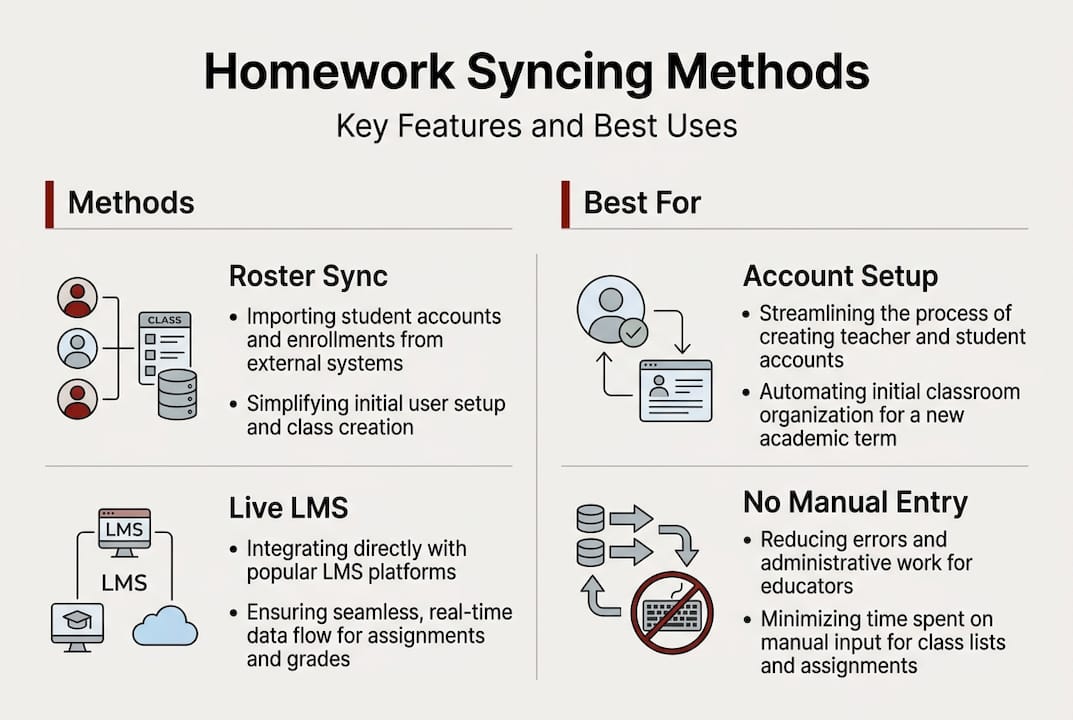
- Roster sync: Automatically imports your class list and student account details from your school's system. This is mostly used by teachers, but it affects how your assignments appear in student-facing apps.
- Gradebook sync: Pulls your grades directly from your school's grading platform into your planner app. Useful for tracking GPA impact in real time.
- Task import: Lets you bulk-add assignments from a spreadsheet or course syllabus. Not live, but great for setting up a semester at once.
- API/live sync: The most powerful method. Your app connects directly to your Learning Management System (LMS) like Canvas or Blackboard and updates in real time whenever an instructor posts or changes an assignment.
- Cloud account linking: The simplest method. You log into the same account (Google, Apple, or the app's own account) on every device, and your data stays consistent through that shared account.
| Sync method | Speed | Requires LMS | Best for |
|---|---|---|---|
| Roster sync | One-time | Yes | Account setup |
| Gradebook sync | Periodic | Yes | Grade tracking |
| Task import | Manual | No | Semester planning |
| API/live sync | Real-time | Yes | Daily task updates |
| Cloud account | Near real-time | No | Cross-device access |
Live LMS integrations used by apps like Shovel and Perusall pull course data automatically, so you never have to manually enter a due date again. When your professor updates an assignment on Canvas, the change appears in your app almost instantly.
Pro Tip: Always choose an app that offers live API sync over task import if your school uses Canvas, Blackboard, or Google Classroom. Live sync saves you hours of manual entry every semester.
Comparing top homework syncing apps and platforms
Once you know the types of syncing, you'll want to see which tools match your study style. Here's how the leading apps stack up.
| App | Platform support | Sync type | Standout feature |
|---|---|---|---|
| myHomework | iOS, Android, Web | Cloud account | Simple UI, long track record |
| Power Planner | iOS, Android | Cloud account | Grade forecasting |
| Shovel | iOS, Android, Web | Live LMS | Real-time Canvas/Blackboard sync |
| Perusall | Web, LMS embedded | API/gradebook | Auto grade columns in Canvas |
Multi-device sync is available across Shovel, myHomework, and Power Planner, but the depth of integration varies significantly. myHomework has been around for years but has faced criticism for slowing development updates. Power Planner offers excellent grade forecasting but locks some sync features behind a premium subscription. Shovel stands out for its live LMS connections, making it the strongest pick for college students whose professors actively use Canvas or Blackboard.

Perusall's Canvas sync goes a step further by automatically creating and managing grade columns directly inside Canvas, which means your instructor's gradebook and your personal tracker stay aligned without any manual work.
Choosing the right app depends on your situation:
- Cross-device access only: myHomework or Power Planner free tier
- Real-time LMS updates: Shovel
- Grade tracking with forecasting: Power Planner premium
- Embedded course reading with sync: Perusall
Pro Tip: Before committing to any app, check its most recent update date in the app store. An app that hasn't been updated in over a year may have compatibility issues with newer operating systems or LMS platforms.
Troubleshooting common homework syncing issues
Even with top-notch syncing, occasional hiccups can happen. Here's what to do when things go wrong.
The most common syncing problems students face include device mismatches (logging into different accounts on different devices), outdated app versions, premium-only sync restrictions, and interrupted LMS connections caused by school IT changes.
"I updated my assignment on my phone, but my laptop still showed the old version. Turns out I was logged into two different email accounts."
This is the most frequent complaint, and it's almost always fixable. Sync issues tied to premium limitations or stagnant app updates are also common with platforms like Power Planner and myHomework.
Follow these steps to fix most syncing problems:
- Check your login: Open the app on each device and confirm you're signed into the exact same account email. Even a capital letter difference can cause a mismatch.
- Update the app: Go to your app store and install any pending updates. Outdated versions often lose compatibility with cloud servers.
- Check your internet connection: Syncing requires an active connection. Switch from Wi-Fi to mobile data (or vice versa) to rule out a network issue.
- Revoke and reconnect LMS access: If your school recently updated Canvas or Blackboard, your app's permission token may have expired. Go into the app's settings and reconnect your LMS account.
- Clear app cache: On Android especially, a bloated cache can prevent syncing. Clear it from your phone's app settings, then reopen the app.
Pro Tip: Always check app update logs before assuming a syncing bug is your fault. App developers post known issues in update notes, and a fix may already be in the pipeline.
The real impact of homework syncing: Beyond convenience
Here's something most articles won't tell you: homework syncing isn't just about saving time. It's about freeing up mental bandwidth. When you know your task list is accurate on every device, you stop carrying the low-grade anxiety of "did I forget something?" That mental space goes back to actual learning.
But there's a flip side worth acknowledging. Students who rely entirely on synced apps with no backup plan are one server outage away from chaos. If your school's LMS goes down the night before finals, your synced app may go dark with it. That's a real risk.
The smartest approach is to use the best syncing tools available while keeping a simple manual backup for your highest-stakes deadlines. A quick screenshot of your upcoming due dates or a short note in a physical planner costs you two minutes and can save your grade.
Most students also underestimate how much time they lose without real-time sync. Searching for the "right" version of an assignment list, re-entering tasks, or second-guessing whether a deadline changed adds up to hours per semester. That time compounds. Invest in syncing early in the school year, and the payoff shows up in every assignment you submit on time.
Try smarter homework syncing today
If you're ready to experience seamless task management, smart syncing, and enhanced productivity, here's an easy place to start.
Managing assignments across devices is already hard enough without worrying about whether your tools are keeping up. That's why AI-powered homework tools at homework.pics are built to keep your work consistent, accessible, and always up to date. The platform combines smart writing assistance with progress-saving features that sync across your devices automatically.
Whether you're writing an essay, tackling a problem set, or just trying to stay organized before a big exam week, homework.pics gives you the tools to work smarter. Stop retyping. Stop second-guessing. Start finishing.
Frequently asked questions
How does homework syncing work between different devices?
Homework syncing uses cloud accounts or live LMS integrations to push assignment data instantly across all your devices. Multi-device sync through apps like myHomework and Power Planner relies on a shared cloud account to keep everything aligned.
Which homework syncing method is the most reliable?
Live LMS integration is the most reliable because it updates tasks and grades automatically without any manual input. Shovel's live LMS sync is a strong example of real-time syncing done right.
What should I do if my synced assignments stop updating?
First, confirm you're logged into the same account on all devices, then update the app and check your internet connection. Mismatched accounts and outdated apps are the two most common causes of sync failures.
Are all homework syncing features free?
Not always. Some apps like Power Planner require a premium plan for advanced syncing features, so check what's included in the free tier before committing.